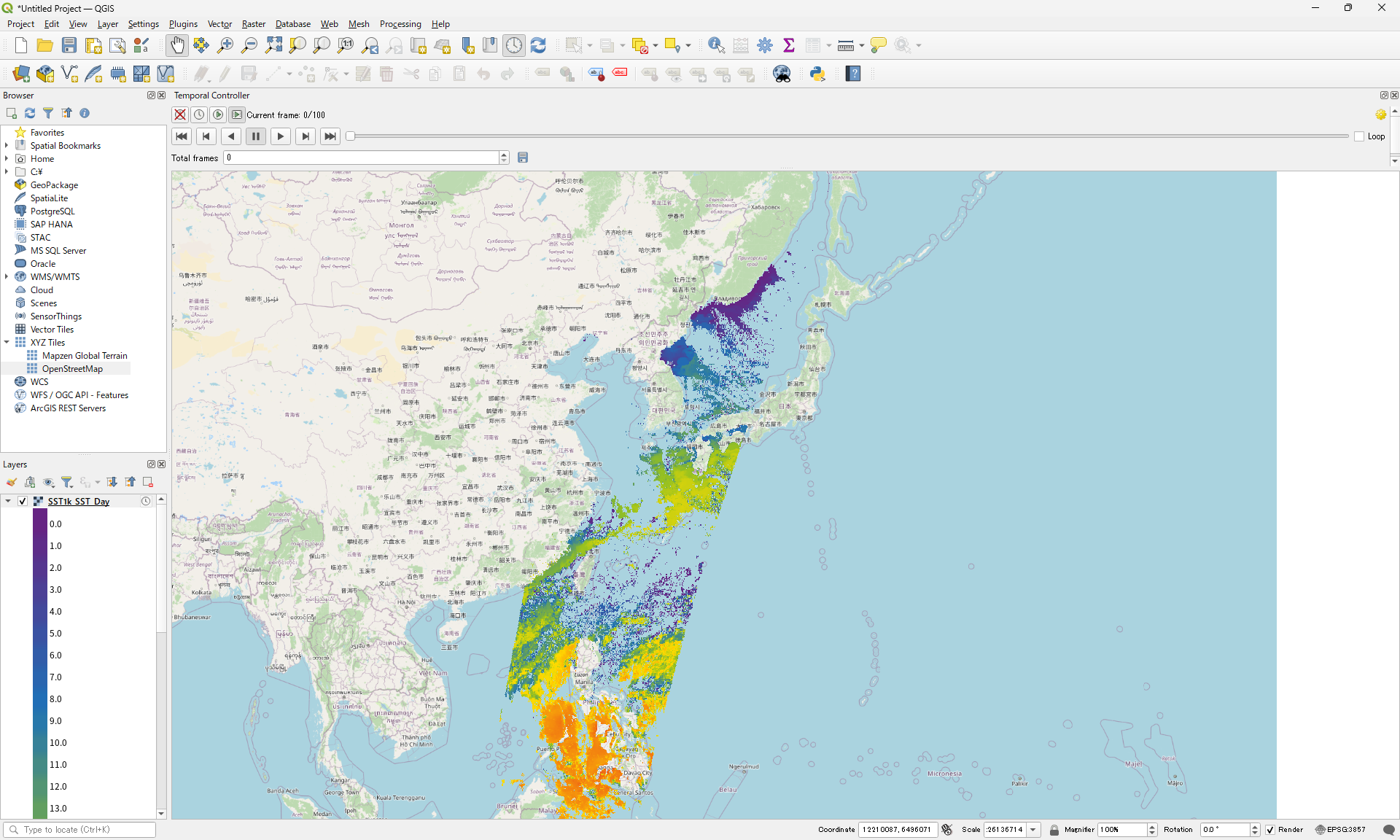
QGIS(WMS)
Environment
OS
Windows 11 (24H2)
QGIS
version : 3.40
QGIS operation
Launch QGIS
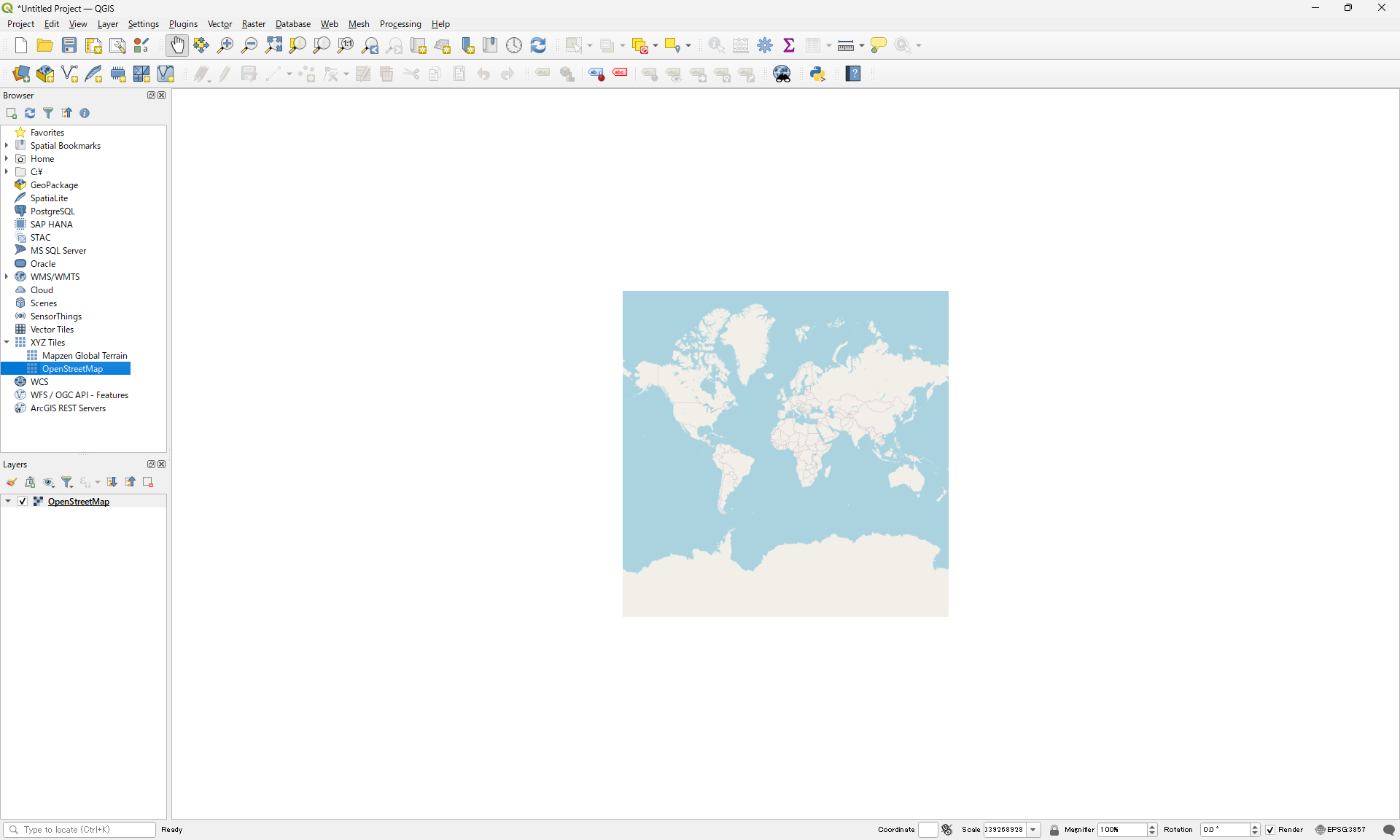
Double click the OpenStreetMap at XYZ Tile to open world map.
Configure WMS server and display the WMS layer over the OpenStreetMap.
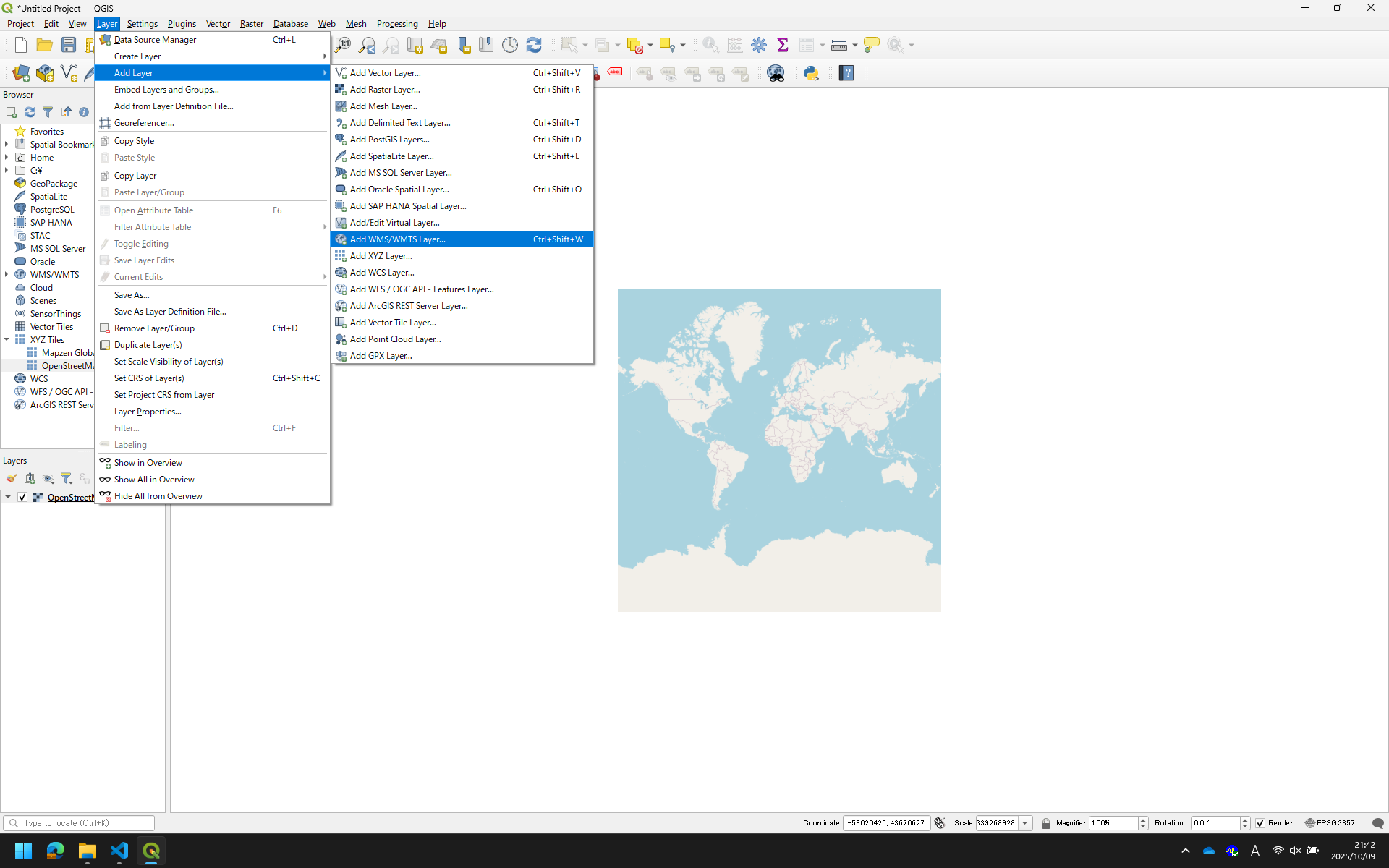
3.1. Click "Layer -> Add Layer -> Add WMS/WMTS Layer" in menu bar.
3.2. Click "New" button.
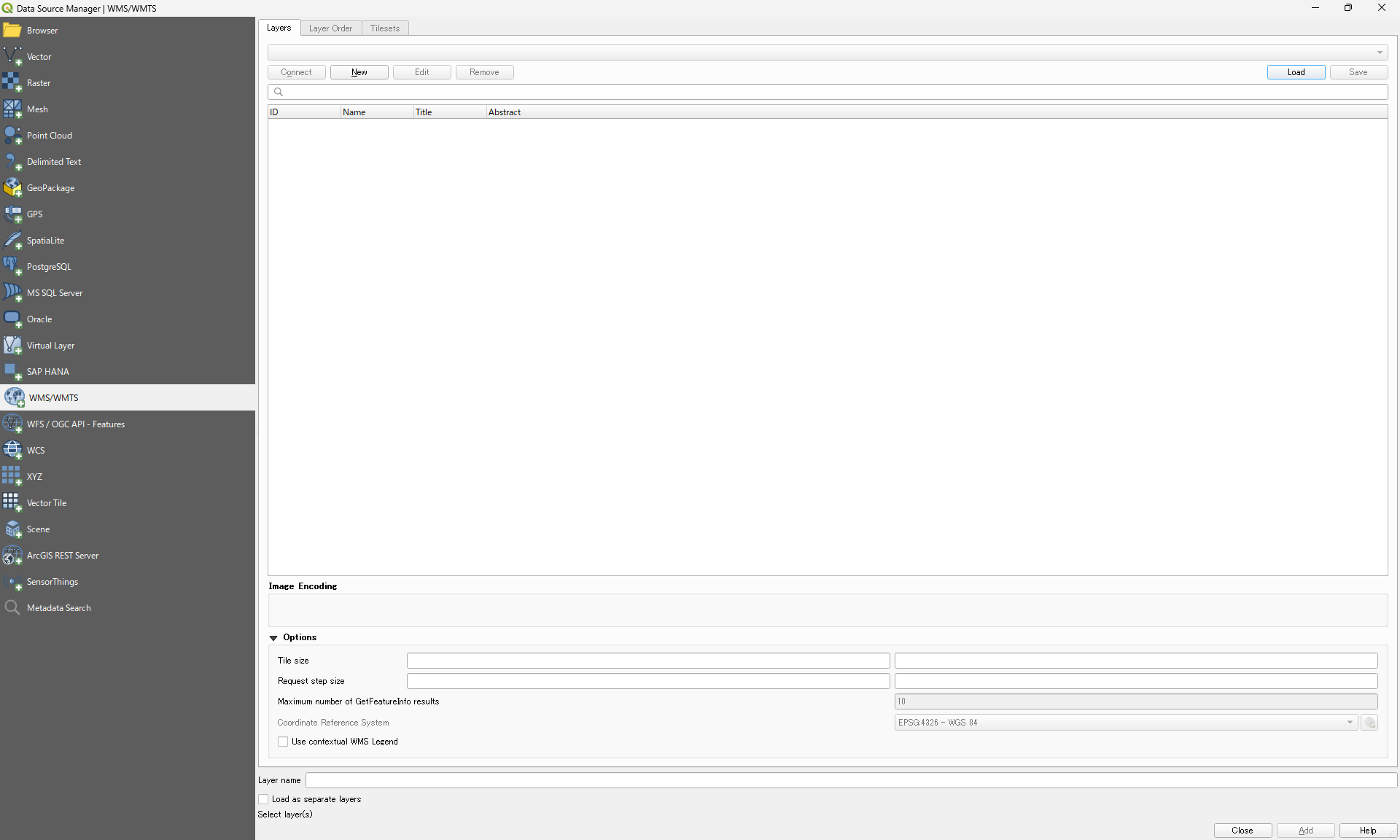
3.3. Set up the WMS settings.
3.3.1. Fulfill the text box
Name : Anything
URL: https://gpwmap.jaxa.jp/wms
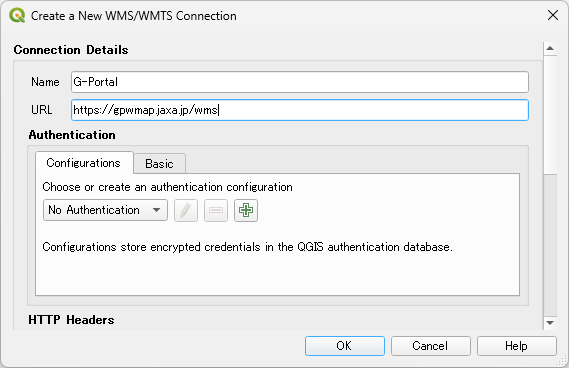
3.3.2. Click "OK" button.
3.4. Confirm that "Name" is displayed at toggle button.
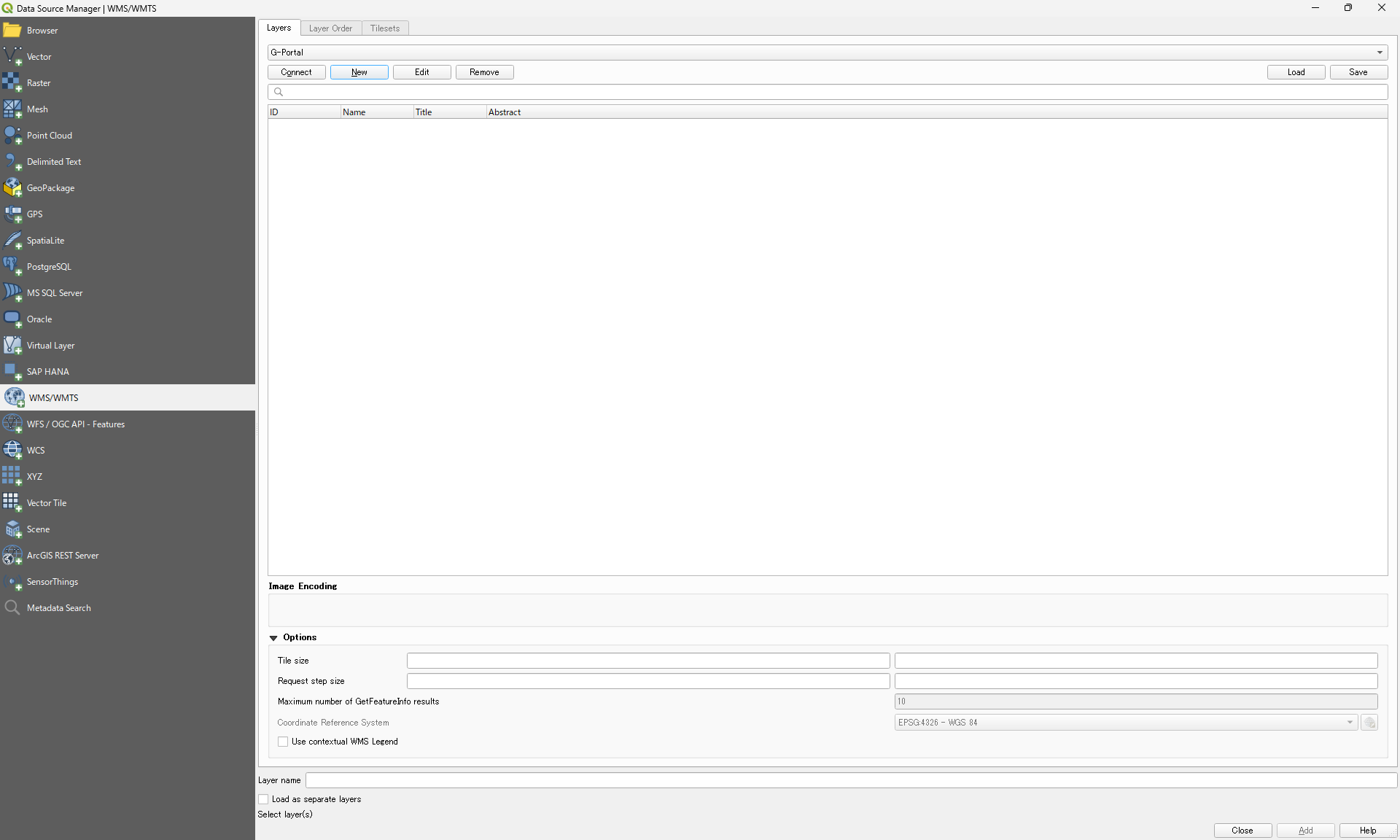
3.5. Click "Connect" button.
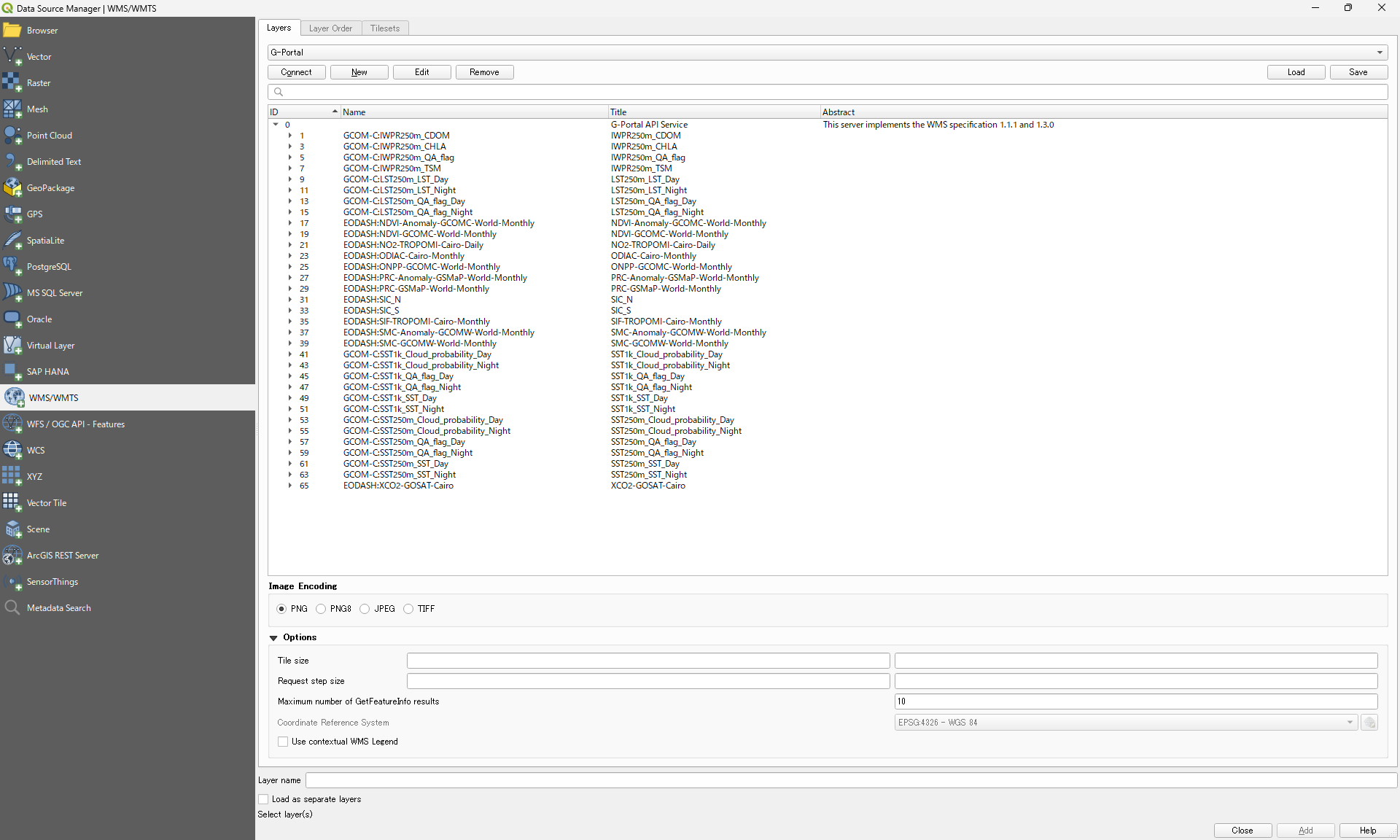
3.6. Choose the layer.
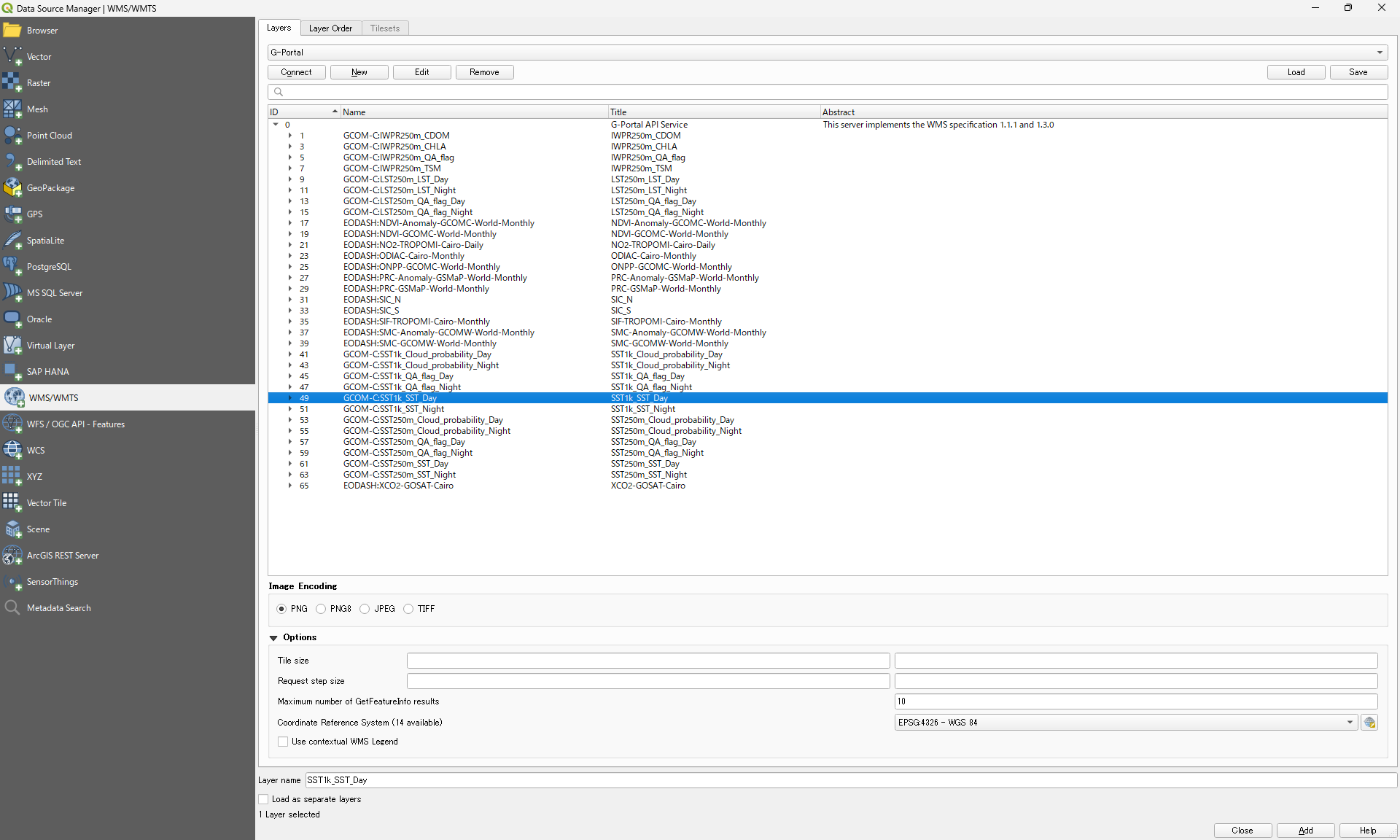
3.7. Click "Add" button.
3.8. Click "Close" button.
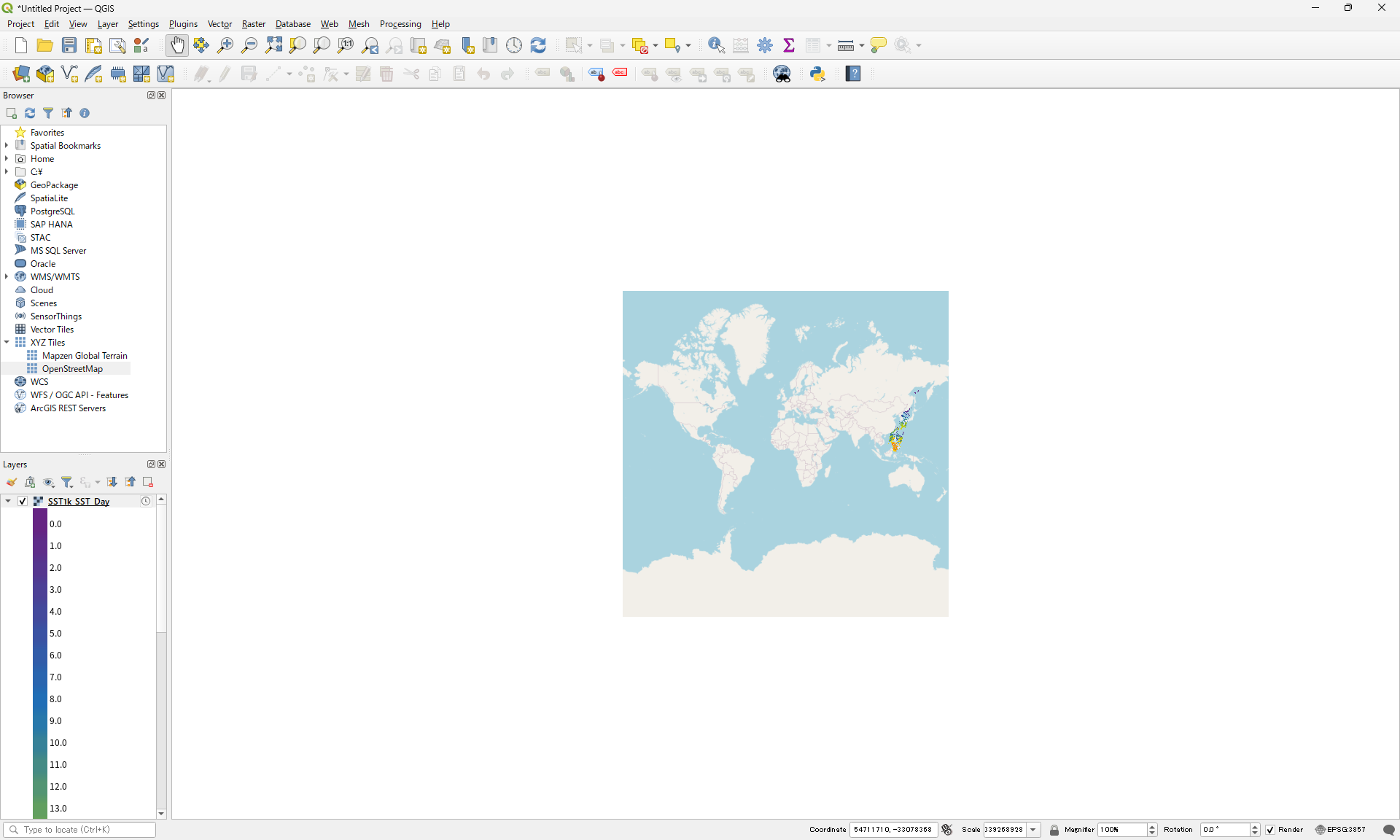
3.9. Zoom in and move where you want to see.
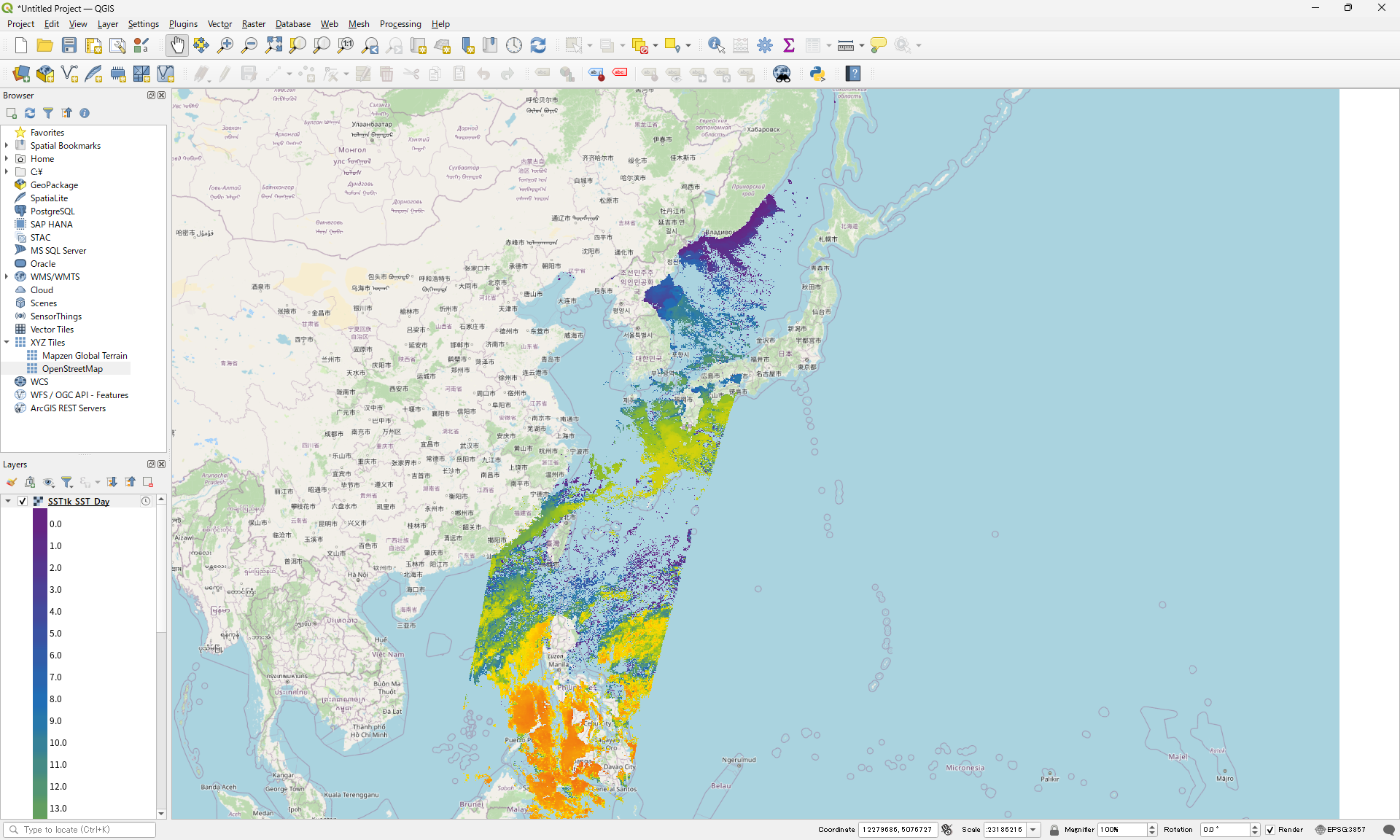
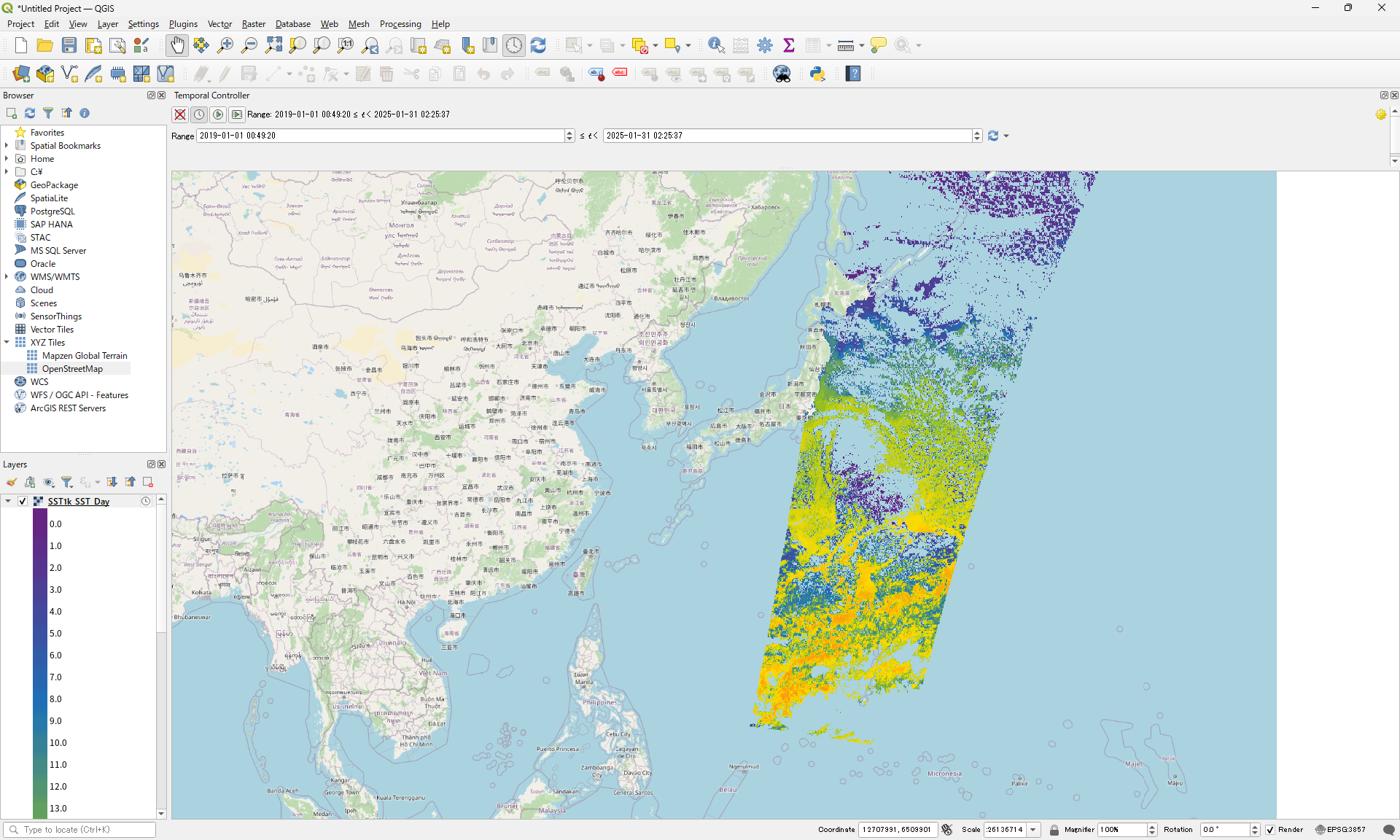
Display "Temporal Controller" panel.
4.1. Fixed time range.
4.2. Animated temporal navigation.
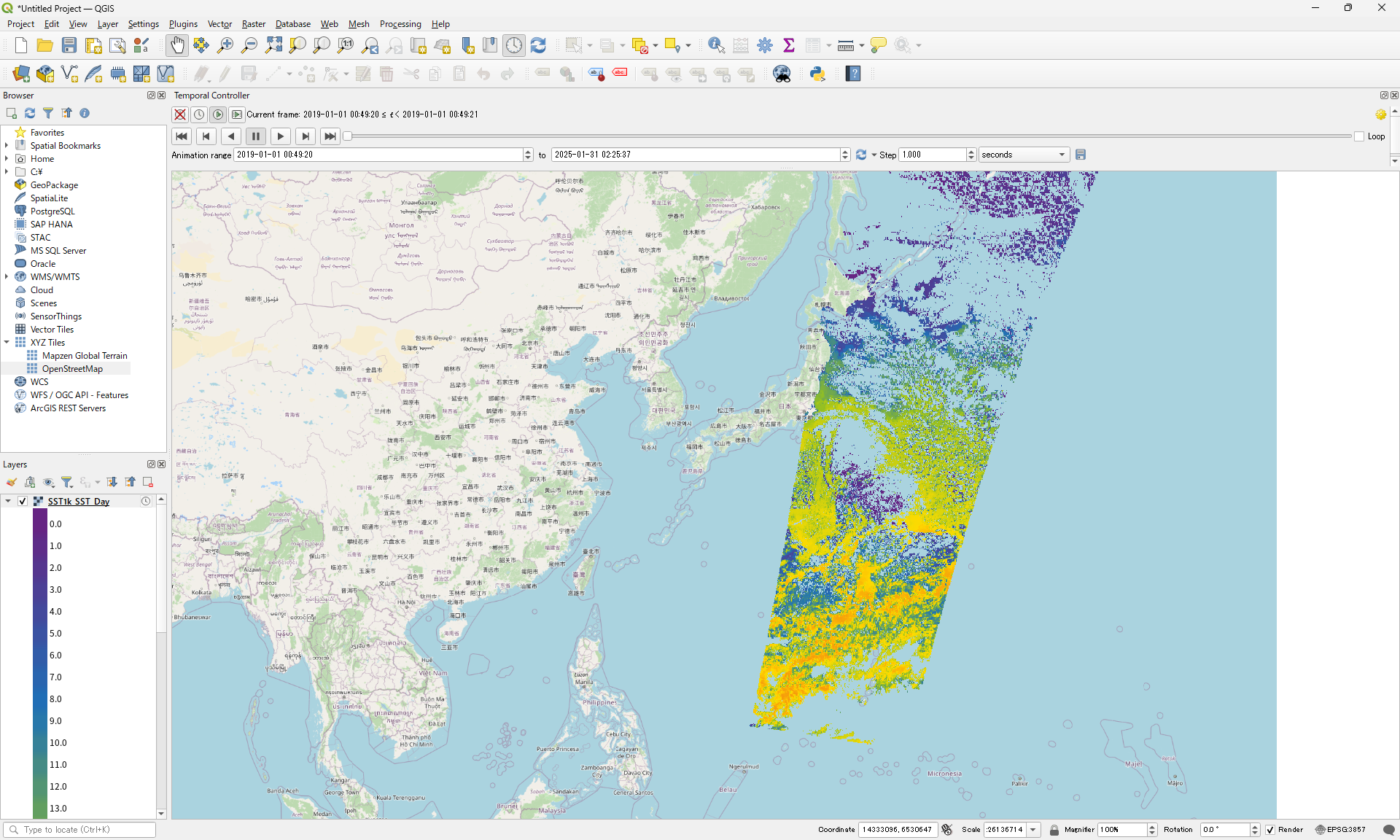
4.3. Animated movie.